

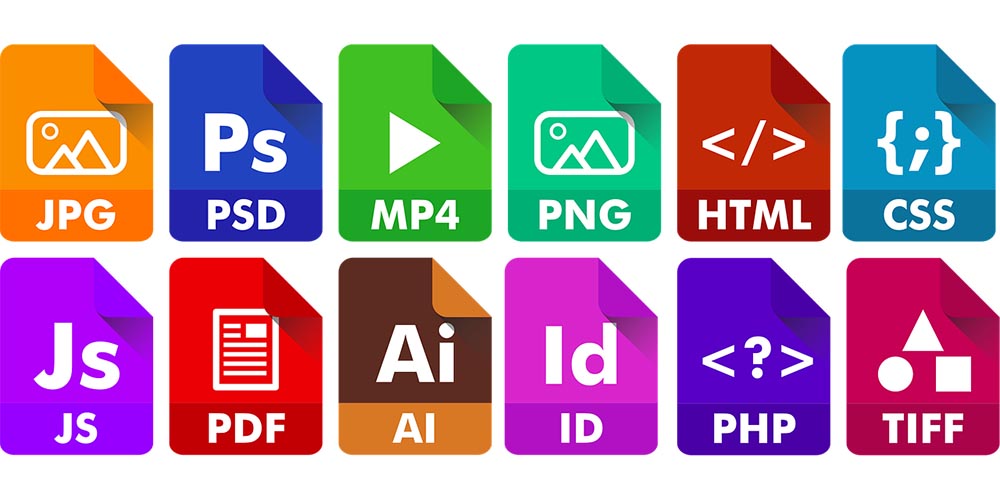
Digital files are part of almost every modern workflow.
People use images for websites, social media, presentations, online stores, documents, emails, and personal projects. Documents, videos, audio files, and other digital content also move between different devices and applications every day.
One common problem appears when a file is saved in a format that another application or website does not support. A phone may save a photograph in HEIC, while a website may only accept JPG or PNG. A designer may receive an SVG file when a project requires a PNG image. Someone working with a document may need a PDF instead of an editable DOCX file.
In these situations, file conversion can make the process easier. However, choosing the right format is important because different formats have different strengths.
Why File Formats Matter
A file format determines how information is stored inside a file and how software reads it. Although two files may contain similar visual or written content, they can behave differently depending on their formats.
For images, the most familiar formats include JPG, PNG, GIF, WebP, SVG, and TIFF. Each one is designed for particular purposes.
JPG is widely used for photographs because it can produce relatively small files. PNG is useful when lossless compression or transparency is important. WebP is designed with modern web use in mind, while SVG is commonly used for logos, icons, and other scalable graphics.
Documents have their own formats as well. DOCX is commonly used for editable documents, while PDF is often preferred when the appearance of a finished document needs to remain consistent.
Understanding these differences can prevent problems later in the workflow.
Choosing Between JPG, PNG, and WebP
JPG, PNG, and WebP are three formats that frequently appear in everyday digital work.
JPG
JPG, also called JPEG, uses lossy compression. Some image information is removed during compression to reduce file size.
This makes JPG particularly practical for photographs. A high-resolution photograph can be much easier to store, send, and upload after being saved as a properly compressed JPG.
JPG is often suitable for:
- Digital photographs
- Website images
- Email attachments
- Social media pictures
- General-purpose images
The main consideration is that JPG does not preserve every piece of original image information. Repeatedly saving and recompressing a JPG can also affect image quality.
PNG
PNG uses lossless compression, which makes it useful when preserving image information is important.
It also supports transparency, making it a popular choice for logos, screenshots, illustrations, icons, and graphics that need a transparent background.
PNG is often appropriate when:
- Transparency is required
- Sharp graphics need to be preserved
- Screenshots contain text
- An image will be edited again
- Lossless storage is preferred
For photographs, however, PNG files can sometimes be significantly larger than JPG files.
WebP
WebP is another image format commonly used on websites. It supports both lossy and lossless compression.
One reason websites may use WebP is that image files can often be delivered efficiently without requiring the same file sizes associated with some older formats.
WebP can be useful for:
- Website photographs
- Online graphics
- Product images
- Blog images
- Modern web interfaces
The appropriate format still depends on the website platform and the requirements of the project.
When Image Conversion Becomes Necessary
There are many everyday situations where converting an image can solve a compatibility problem.
For example, a photographer may have an image saved as TIFF but need a smaller JPG for uploading to a website. A smartphone user may have a HEIC photograph that needs to be converted to JPG before it can be opened in a particular application.
Other common examples include:
| Original Format | Possible Conversion | Typical Reason |
| HEIC | JPG | Compatibility |
| PNG | JPG | Smaller photograph-style file |
| JPG | PNG | Lossless or transparent workflow |
| PNG | WebP | Web delivery |
| SVG | PNG | Raster image requirement |
| TIFF | JPG | Smaller and widely supported image |
The goal should not simply be to change the file extension. The output should be selected according to what the image will be used for.
Using an Online Conversion Tool
Installing separate software for every file format can be inconvenient, particularly for people who only need to convert files occasionally.
Browser-based tools provide another option. Users can upload a file, select the required format, process the file, and download the result without installing a dedicated desktop application.
For people who regularly work with different file types, the Convertio Official Website provides an online file-conversion workflow that supports more than 300 formats and thousands of conversion combinations.
The basic process is straightforward:
- Select the file from your device.
- Choose the output format.
- Review the available options.
- Start the conversion.
- Download the converted file.
- Open the new file and check the result.
This type of workflow can be particularly useful when a conversion is needed quickly or when installing additional software is unnecessary.
Converting Photos for Different Purposes
Images often need to be converted because different platforms have different requirements.
A website may request JPG, while a graphic designer may need PNG. An online store might prefer optimized images, while a printing project could require a higher-quality source format.
Before converting a photograph, consider where it will be used.
For example, a large image intended for a website may benefit from a format and compression level that keeps the file reasonably small. A logo with a transparent background may require PNG or another format that supports transparency.
When working specifically with images, a dedicated photo converter can be useful for changing photographs between supported formats.
The important thing is to select the destination format before beginning the conversion.
A Simple Image Conversion Workflow
A good conversion process does not have to be complicated.
Check the Original Format
First, determine what format the original file uses. The filename extension can provide a quick indication.
For example:
- photo.heic
- image.png
- picture.jpg
- logo.svg
- graphic.webp
Knowing the original format helps you understand what kind of conversion is taking place.
Identify the Destination
Next, think about where the converted file will be used.
Will it be uploaded to a website? Sent to another person? Added to a presentation? Edited again? Printed?
The answer can influence which format makes the most sense.
Select the Output Format
Choose a format that meets the requirements of the destination.
Do not automatically choose the format with the smallest file size. A very small file may not provide enough quality for a particular purpose.
Review Available Settings
Some conversion processes offer options such as image quality, compression, dimensions, or resolution.
If the final image needs to maintain a specific size or quality level, these settings should be reviewed before conversion.
Check the Finished File
After the conversion is complete, open the new file.
Check whether the image looks correct, whether the dimensions are appropriate, and whether transparency or other important properties have been preserved.
This final step is easy to overlook but can prevent problems later.
Keep the Original File
One of the most useful habits when working with digital files is keeping the original source.
Suppose an original photograph is converted into a smaller JPG and the original is deleted. If the smaller version later needs to be edited or converted into another format, there may be less information available than in the original file.
Keeping the source file provides more flexibility.
A simple folder structure can help:
Original Files
Keep the untouched source files here.
Converted Files
Store JPG, PNG, WebP, PDF, or other converted versions separately.
Final Files
Keep the versions that are ready to publish, send, or upload.
This approach makes it easier to identify which file should be used for future conversions.
Avoid Unnecessary Quality Loss
Not every conversion causes the same type of quality change.
Lossy formats such as JPG can remove some image information when compression is applied. If an image is repeatedly converted and recompressed, visible quality may eventually decline.
For that reason, it is generally better to make important conversions from the highest-quality available source rather than repeatedly converting an already compressed copy.
For example, if you have an original high-quality photograph and need both JPG and WebP versions, creating both from the original is preferable to converting JPG into WebP and then using that version as the new source.
Converting Multiple Images
Converting a single photograph is easy, but dealing with dozens of files individually can take considerable time.
Batch conversion can be useful when many images need to be changed into the same format.
For example, a website owner might have 50 PNG images that need to be prepared as WebP files. A photographer might have a large group of images that need to be converted into JPG for sharing.
Before processing a large collection, it is sensible to test the conversion on one or two files. This makes it possible to check quality, dimensions, and file size before applying the same settings to the entire group.
Consider File Size and Storage
File size matters when uploading, downloading, sharing, or storing digital content.
Large images can consume more storage and may take longer to upload. On a website, unnecessarily large images can also increase the amount of data visitors need to download.
However, reducing file size too aggressively can make images look blurry or introduce visible compression artifacts.
The best approach is to find a practical balance between quality and size.
For photographs, JPG may provide a useful balance. PNG can be better for graphics and transparency, while WebP can be considered for modern web workflows.
File Conversion Beyond Images
The same principles apply to documents, audio, video, and other digital files.
A person may convert DOCX to PDF when sharing a finished document. A spreadsheet may be converted to CSV for use in another data-processing application. An audio recording may need to be converted into a different format for compatibility with a particular device.
The format should always match the next step in the workflow.
Changing a file simply because another format seems newer or more popular does not necessarily improve it.
Make the Format Match the Purpose
Choosing a file format becomes much easier when the intended purpose is clear.
For photographs, JPG is often practical when compatibility and file size are important. PNG is useful for transparency and lossless graphics. WebP can be considered for web-based images, while SVG is well suited to scalable vector artwork.
The same principle applies to other file types. Instead of asking which format is universally best, ask which format fits the specific task.
A Practical Approach to Everyday File Conversion
File conversion is a normal part of working with digital content. The process becomes easier when users understand why different formats exist and what each one is designed to do.
Before converting a file, identify the original format, determine the requirements of the destination, choose the appropriate output, and review the finished result.
Keeping the original file is also a useful precaution. It allows new versions to be created later without relying on an already compressed or modified copy.
With a little planning, converting images and other digital files can become a simple part of an everyday workflow rather than a frustrating technical problem. The right format is ultimately the one that provides the compatibility, quality, size, and functionality required for the task at hand.